Claude plugin
Install the Manai plugin in Claude
Download and upload the Manai plugin ZIP, install its included connector, and sign in to your Manai account.
You will need: A Claude account with Plugins and plugin uploads available · A free or paid Manai account · For Team or Enterprise, an Owner may need to allow or upload the plugin
Important: Uploading the ZIP installs the plugin, but it does not connect your Manai account. Complete both parts below: upload the plugin, then install its included connector and sign in.
Manai plugin
Download the installable plugin
This package includes Manai's guided workflow and secure tools for Claude. Keep the ZIP intact when you upload it.
Part 1 — Upload the Manai plugin
-
Download the Manai plugin
Select Download for Claude on this page. Keep the downloaded Manai file zipped—do not extract it.
-
Open Plugins in Claude
In Claude, open Customize from the sidebar, then choose Plugins.
-
Choose Add plugin
In Plugins, choose Add plugin (or the plus button), then choose Upload plugin.
-
Upload and enable Manai
Select the Manai ZIP you downloaded without extracting it. Finish the upload and make sure the Manai toggle is on.
Part 2 — Connect and sign in to Manai
Do not stop after the upload. Open the Manai plugin’s
own Connectors tab and install its manai connector. This
is the step that opens Manai sign-in and gives Claude access to
Manai’s tools.
-
Open your personal Manai plugin
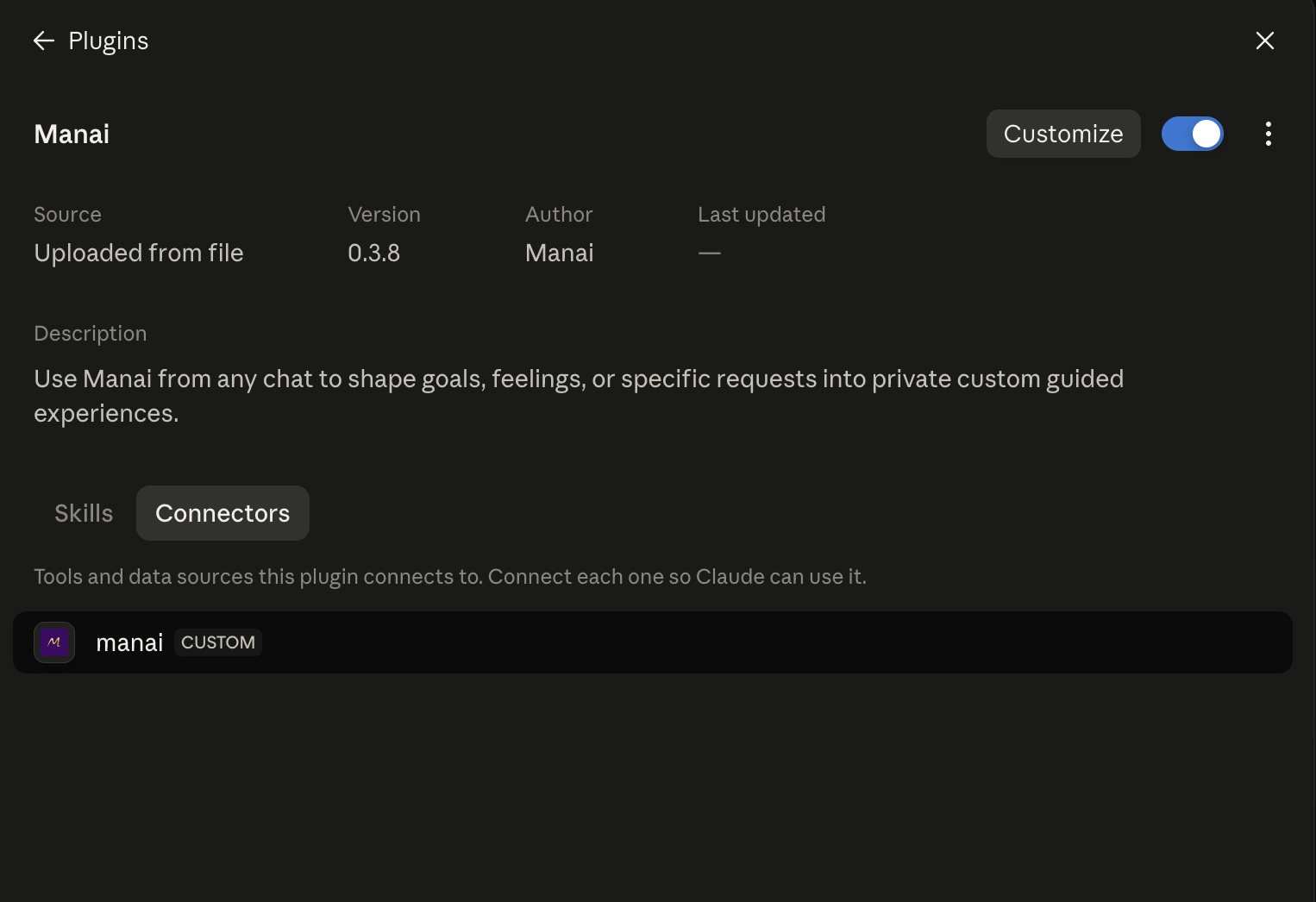
Return to Plugins, choose Personal, then select Manai.
-
Open Manai’s connector settings
Open Settings for the Manai plugin, then choose the Connectors tab. Uploading the ZIP does not complete this connection step.
-
Install the Manai connector
Select the manai connector row, then choose Install.
-
Sign in to Manai
Sign in to Manai in the browser window that opens. Review and approve access, then return to Claude.
-
Start a new chat and test Manai
Confirm Manai is enabled, start a new Claude conversation, and ask: “Use Manai to check my current usage.”
Using Claude Code?
Claude Code can add the same Manai server from your terminal. Run this
command, then use /mcp, select manai,
and choose Authenticate.
claude mcp add --transport http manai https://mcp.manaiapp.com/mcpFallback only—no Upload plugin option? If your Claude account does not offer plugin uploads, manually add Manai under Customize → Connectors using the address below. Do not use this fallback when you can upload the plugin ZIP.
https://mcp.manaiapp.com/mcpCheck that it worked
- Ask Claude to call Manai’s usage-status tool first.
- Claude reads Manai’s live authoring kit before writing the practice.
- For a finished session, Claude also writes a concrete cover-art prompt and asks Manai to produce the narration and artwork.
For a no-cost connection check, ask the assistant: “Use Manai to check my current usage.” It should call get_usage_status and return account data—not just
say the connection is ready.
Create your first finished practice
Use Manai to check my current usage. Then create a finished 10-minute guided practice for what I need today. Ask me only the essential questions, author a concrete cover-art prompt that matches the practice, produce the narration and artwork, and return my private Manai link.What “finished” means: the assistant writes the guided experience and a concrete visual brief. Manai validates it, generates narrated audio and square cover art, saves it privately, and returns an owner link you can open while production completes.
If the connection does not appear
- Make sure the full address ends in
/mcp. - Remove the connection, add it again, and complete the browser sign-in.
- Start a new conversation after connecting; some clients do not refresh tools in an existing chat.
- If a client returns only status sentences without tool data, report the client name and failing Manai tool to support.
Platform labels can change. These instructions were checked on August 13, 2026. Compare them with the Anthropic plugin documentation if your screen looks different.